Last updated October 2026
What's New Latest features in this guide
Part 1
Plan your cookoff: why and how to organize
Cook-offs are an exciting way to bring friends, family and communities together. Whether you are a seasoned pitmaster, a chef, or someone who just enjoys tasty food, hosting a competition can be a rewarding experience. Participants get to show off their culinary skills while attendees get something delicious to enjoy.
This guide takes you through every step of planning and hosting a successful EasyCookoff.app competition, one people will be talking about for years. Along the way, the "On EasyCookoff.app" boxes show exactly which platform features handle each step for you.
Community engagement
Cook-off events foster camaraderie and bring people together.
Showcase culinary skills
Participants demonstrate their grilling techniques and recipes.
Raise funds for a cause
Cook-offs make great fundraisers for local charities and community projects. People's Choice events can bring in substantial funds.
Fun and entertainment
Cook-off events are entertaining for all ages.
Step 1: Define your goals and objectives
Before planning, decide what you want the cook-off to accomplish: raising money for a local charity, building community engagement, or just having fun. Your goals will guide every decision.
Start months before the event date to find sponsors and volunteers; these two things can make or break your event. Sponsorship money allows bigger cash prizes and trophies, and substantial payouts attract teams and can be the deciding factor when they choose between events. Keep it up year after year to build a healthy event for years to come.
On EasyCookoff.app
- Fundraiser-friendly setups — Run a sanctioned-style contest, a backyard cookoff, a town festival or a non-profit fundraiser with People's Choice voting.
- Platform tour — See every organizer feature in action before you start.
Step 2: Select a date and location
- Date(s): look for similar events nearby so you don't compete with them, since teams may have to choose. Holding the event alongside a town's yearly festival helps attract teams and recruit the public as People's Choice judges.
- Location: choose a venue big enough for participants and attendees, such as a community park, sports field or even your backyard, with bathrooms and parking.
- Amenities: teams appreciate electricity and water. If you can't provide electricity, consider allowing small generators, and say clearly in the rules what is and isn't provided or allowed.
- Easy sign-up, communication and scoring: using EasyCookoff.app tells teams you care about making the process easier, and that their scores won't depend on an outdated spreadsheet. Improper scoring hurts an organizer's credibility for future cookoffs.
On EasyCookoff.app
- Event page with map — Your event page shows the date, location and a map, plus your rules, site maps, PDFs and photos of the grounds and trophies.
- Events near me — Teams find your event by date or distance on the home page and the events map.
Step 3: Develop a budget and find sponsors!
A realistic budget keeps your event financially sustainable. Plan for:
- Venue rental
- Permits (food service and event permits)
- Advertising and marketing
- Equipment (tents, tables and more)
- Food and supplies for judges
- Trophies: teams love hardware!
- Gift bags for teams: sponsor coupons, gift cards, t-shirts, branded tumblers, supplies and stickers, plus sponsor advertisements. Hand them out at the cook's meeting or the awards ceremony as a thank-you.
- Sponsor booths, especially if you have a People's Choice component. Use tiered sponsorships such as bronze, silver, gold and platinum.
- Sponsor banners
- Food trucks and bar stations to enhance a People's Choice event
On EasyCookoff.app
- Event P&L & Budget tool (free) — Every event gets its own P&L named after the event. It auto-fills teams, entry fees, rib orders, prize purse and your EasyCookoff fees, and shows budget vs actual, profit, margin and the break-even team count. Print it or download it to Excel.
- Sponsorship tracking — Add each sponsor's name and donation, mark it paid, and switch it in or out of the totals.
- Sponsor Thank-You Report — Print a sponsor summary plus a personal thank-you letter for every sponsor.
- Sponsor wall — Show sponsor names and logos on your public event page.
- Live fee estimator — See your exact EasyCookoff cost: Full Organizer is a $50 activation plus a stacked per-entry fee ($2.00 for entries 1–12, $1.50 for 13–24, $1.00 from 25 on). Scoring Only is $40 plus $1.00 per team. Teams always pay $0 to the platform.
- Event Flyer Maker — Print or download a flyer with your payouts, cause and QR codes for team sign-up and your event page. Turn on fan sharing in Edit Event.
Step 4: Choose the categories
- Beef brisket
- Pork ribs: the most popular meat for a single-meat event. They pair well with a People's Choice or Ribfest.
- Chicken
- Pork shoulder
- Ancillaries: desserts, drinks and themed entries like "anything turkey" or "anything bacon". Ancillary categories appeal to teams because they get to stretch their creativity.
- People's Choice cookoff: give teams money back for each rib served, and advertise it to attract teams.
- Steak cookoffs are growing in popularity too.
On EasyCookoff.app
- Multi-division events — Mix sanctioned-style, backyard, steak, chili, ancillary and People's Choice divisions in one event, each scored with its own rules.
- Open / ancillary categories — Add an open category such as "anything turkey" for a non-traditional twist.
Step 5: Recruit participants
- Create a flyer that includes payouts and your cause, with directions on where to sign up.
- List your event on local event platforms such as city websites.
- Promote it on social media.
- Offer incentives: awards, gift bags and cash prizes that are as generous as possible.
- Run a People's Choice contest to build community engagement and raise awareness and money for your cause by selling rib cards.
- Share People's Choice profits with teams. Food sports are a fun but costly hobby, and paying teams $1 or more per rib ticket redeemed is becoming common. If a 5-rib card sells for $15, giving $5 back helps teams cover costs and attracts more of them.
- Make awards as elaborate as possible. Trophies are great, and WWE-style belts for People's Choice are growing in popularity.
- Keep registration simple and take entry fees easily.
On EasyCookoff.app
- Event search & map — Your event is listed for teams to find and sign up, sorted by date or location.
- Online registration — Collects team name, captain, contact info and categories entered. You approve or reject each sign-up before payment, and you can adjust your team count right up to event day.
- Flexible payments — Teams pay you directly by Venmo, PayPal, cash or check, with clear instructions on the event page.
- Share Invite Link & "invite more teams" prompt — Send your event through Messenger, Instagram DM, Facebook, WhatsApp, text or email. The Dashboard shows how many spots are filled and how many more entries would lower your fee.
- Followers & invites — Fans and teams follow you. When your next event goes live, followers get an alert, a push notification and an email.
- Team tools — Team captains invite members by email, build a team profile and keep a permanent history of every cookoff they enter, with scores.
Step 6: Assemble a judging panel
A credible judging panel adds legitimacy to your cook-off. Invite local chefs, food bloggers and BBQ fans to judge, and brief them on the criteria (appearance, taste and tenderness). City officials and business leaders add another layer of community involvement.
Look to sanctioning bodies for rules and judging criteria to emulate, and find sanctioned, trained judges to judge or to train your judges. EasyCookoff.app uses sanctioning-body logic.
On EasyCookoff.app
- Free scorecards — Download judging and People's Choice scorecards from Event Resources.
- Judge accounts — Add judges to your event. Scores entered in the app can be shared with teams as feedback on their turn-in boxes.
Step 7: Plan logistics
A. Permits and health guidelines: check with your local health department for required permits, especially if food is sold, and learn the rules for food safety, waste disposal and sanitation.
B. Equipment and supplies: recommend that registered teams bring:
- Grills and smokers (most important)
- Tents for shade
- First-aid kits
- Trash and recycling bins
- Metal ash containers
- Rubs, sauces, utensils, and nitrile or vinyl food gloves
- Soap and sanitizing wipes
- Paper food boats for People's Choice samples
- If possible, water and electricity provided for teams
C. Create a schedule: a detailed event-day schedule keeps everything running smoothly. Include time slots for setup, cooking, judging and awards.
On EasyCookoff.app
- Post rules, site maps & schedules — Upload PDFs and photos to your event page so every team has the same information.
- Team messaging — Message all registered teams at once with updates.
- Automatic reminders — Registered teams get a reminder 1–2 days before the event, and people who liked it get a "coming up soon" alert.
Step 8: Market your EasyCookoff.app event
- EasyCookoff.app: anyone can find cookoffs, including People's Choice events, for free by location or date. Encourage everyone you invite to open EasyCookoff.app to see your event's details.
- Social media campaigns: use Facebook, Instagram and X (Twitter) to engage your audience and share updates.
- Local press: newspapers and radio stations welcome local event news.
- Flyers and posters: put them up in community centers, restaurants and shops.
On EasyCookoff.app
- Share buttons — Teams and organizers share the event to social media straight from the event page.
- Likes & friends' activity — When teams like or sign up for your event, their approved followers see it: free word of mouth.
Step 9: Execute the event
On competition day, make sure everyone knows their role. Event-day checklist:
- Label team spots and be there to help teams find their area. EasyCookoff.app can show a map or picture of the grounds.
- Set up the People's Choice / team registration booth early. Post a schedule of milestones, such as box turn-ins and People's Choice ticket sales, so teams and the public can get ready.
- Hold a judges' meeting to explain the criteria. Use EasyCookoff.app scorecards and enter the scores into the app later. Give teams their cards at the end, since they have comment sections.
- Keep communication open among organizers, participants and volunteers.
- Have a plan for food safety and heating procedures.
- Hold an early cook's meeting to cover milestones, judging criteria, turn-in rules and times. Mention that EasyCookoff.app will send scores to team accounts and by email after the awards ceremony.
- Urge teams to post pictures on social media and tag the event page throughout the day.
- Hand out gift bags as a special thank-you.
- For People's Choice, offer paper boats for samples. Teams often forget them.
- Consider a 9:22 am team shot and photo to build camaraderie (a KC-style tradition).
- Post updates on Facebook during the cook. Interview teams and run an hourly "countdown" to turn-in to build excitement.
On EasyCookoff.app
- Live scoring — Enter scores in the app with sanctioning-body logic. No fragile spreadsheets.
- People's Choice Tracker & rib cards — Track rib and side-dish tickets per team with automatic paybacks, print branded rib cards and golden tickets, and share each team's tally to its portal.
- People's Choice voting — Run Ribfest or People's Choice votes. See the People's Choice & Ribfest Guide for the full playbook.
Step 10: The awards ceremony
Celebrate your participants' hard work. Recognize the winners in each category with trophies or certificates. Consider a Facebook Live or TikTok Live so the public can feel the energy.
Quality awards bring teams back year after year. Award as deep into the field as you can; sponsor gift cards for lower places go a long way, especially for first-timers. With sixteen teams, consider awards to eighth place or lower, however small. This is also a great moment for gift bags.
On EasyCookoff.app
- Awards & emcee read order — Print an awards form and a read-order sheet that builds to the Grand Champion.
- Results & Champions Cards — Finalize results to email every team its scores, and share Champions Cards and the Hall of Champions.
- Payouts — Configure the prize purse and payouts per division, and print the payout sheet.
Post-event activities
1. Gather feedback: ask participants and attendees how it went, and use what you learn to improve. Hand out comment cards, keep them anonymous, and ask teams to send event photos for future promotion.
2. Share highlights: post photos and videos on social media, tag participants and encourage them to share.
3. Plan your next event: if it was a success, make it an annual tradition, building on what worked.
On EasyCookoff.app
- Automatic feedback requests — 1–3 days after the event, registered teams are asked to rate it from 1 to 5 stars and leave a note. Each rating arrives on your notification bell.
- Duplicate for next year — Copy your event, with its divisions, payouts and P&L setup, and list next year's date.
- Sponsor Thank-You Report — Send every sponsor a personal thank-you letter.
Conclusion
Organizing a cook-off is a fun and fulfilling way to strengthen community ties and show off culinary talent. Careful planning, from setting goals to running event day, creates a memorable experience for everyone involved. Strong community support, effective marketing and a passion for competition cooking will make your event stand out.
So fire up those grills, gather your friends and get ready for an incredible Food Sport showdown. Celebrate on social media and give shout-outs to the teams, volunteers and sponsors for their hard work. EasyCookoff.app's friendly features, accurate scoring and easy payments make the experience better for teams and organizers alike.
Part 2
Using EasyCookoff.app step by step
1. How billing works (important)
- Teams pay YOU directly, off-platform (Venmo, Cash App, Zelle, Wise, PayPal, check or cash).
- EasyCookoff only charges YOU — pick a level: Event Listing $20, Scoring Only $40 plus $1.00 per team (charged when you Finalize & Lock; People's Choice and Kid's Que free). Scoring Only and Full Organizer both replace unreliable scoring spreadsheets. On Scoring Only, print results after you Finalize & Lock. Full Organizer is the only level where teams get the full benefit of their team accounts (online sign-up, saved results, career stats and standings) or Full Organizer: a $50 activation fee plus a stacked Competition Entry Fee per meat or ancillary entry (entries 1–12 $2.00 each, 13–24 $1.50 each, 25th and up $1.00 each) — and only when you lock registration to start scoring (paid via Stripe).
- You will see a 2-step charge acknowledgment before any platform charge.
2. Create your event
- Go to Organize a Cookoff (or Dashboard → Create Event).
- Add title, date, location (map pin), timezone, cover banner and description.
- Pick one or more scoring styles/divisions: KC-Style (Appearance/Taste/Tenderness), SCA-style Steak, CASI-style Chili, ancillaries, and People's Choice (ticket counts).
- For People's Choice, choose how many items are judged (1–4) and name each (e.g. Ribs, Sides) — tickets are tallied separately per item.
- Set your prize purse (or mark it TBD) and your team cap (up to 120).
- Add the payment handles teams will use to pay you.
- Short on time? Already ran a similar event? Click Duplicate on any event in your Dashboard to clone all its setup (divisions, categories, payouts, rules, payment methods and cover) into a fresh draft — no teams, scores or payments carry over.
3. Configure payouts
- Open Payouts on the event in your Dashboard.
- For each division/category, choose Pay down to (1st through 10th) and enter a dollar amount per place.
- People's Choice has its own per-item ladder budgeted against the People's Choice purse; ties split the pooled place money evenly.
- Use Autofill to split a purse quickly, then adjust. The allocation bar warns if you exceed a purse.
- Reuse splits across events: click Save current as template to store this payout split, then Apply it on a future event. Applying loads the amounts into the form (matched by division and category name) so you can review before you Save Payouts.
4. Activation, registrations & judges
- Choose your level in Create Event (Event Listing $20, Scoring Only $40, Full Organizer $50 — pre-selected), then pay to publish. Upgrade anytime from App Fees on your Dashboard and pay only the difference.
- Optionally add judges from the event panel so they can see their events in the Judge Portal. Judges score on paper cards; the organizer enters all scores.
- When ready, lock registration and start scoring (this is when platform entry fees apply).
5. Enter scores
- Go to Enter Scores. Score each team per category using the method's criteria.
- For People's Choice, enter each team's ticket tally for every item you configured.
- Scores remain editable until midnight of your event day (or until you mark the event complete — then until midnight of that day).
Rules Packet builderNew
- On your Dashboard, open an event and click Rules Packet.
- Event Details fill in automatically and stay current: date, location, organizer, sanctioning, every cookoff with its Scoring Style and categories, entry fees, prize purse and payout ladders, schedule & turn-in times, rib options and how to pay you.
- Edit the standard sections — General Rules, Meat Inspection & Food Safety, Turn-In & Judging, Disqualifications, Additional Notes — or add your own sections. Click Save.
- Click Print / Save as PDF for a clean, branded packet.
- Flip 'Publish to event page' and teams see a 'Read / download the full Rules Packet' button under Rules on your event page.
- Rules Sign-Off: registered teams get a notification when the packet is first published and tap "I've read the rules" on the packet. You see Team Sign-Offs (signed vs. not yet, with times) on the Rules Packet page, a Rules ✓ badge next to each team on your Dashboard, and a 'Remind unsigned teams' button. Editing and saving the rule sections clears all sign-offs and asks teams to sign the new version.
- Cloned events copy the packet too (unpublished), so next year's rules are ready to review.
- New to writing rules? Tap 'Start from the Pulled Pork example' to load a complete sample, or see the Worked Example page (/guides/example-rules-form) that maps a traditional paper rules form to EasyCookoff.
Clone to next year & event lifecycleNew
- Click Clone to next year on any event (including Historical ones). Settings, divisions, categories, fees, payouts and rules copy over; the date moves forward a year on the same weekday and a year in the title is updated (e.g. 2026 → 2027).
- The copy is saved as a draft — review it, then pay the activation for its level to publish. Teams, scores and results never carry over.
- Reminders: 60 days and 300 days after your event we email you a one-tap Clone to next year link (skipped if you've already cloned it).
- Lifecycle: at midnight after the event (in the event's time zone) the event is marked Completed. 30 days later it moves to Historical — hidden from active lists, still listed under Historical & Archived on your Dashboard with results and history intact.
6. Finalize: Email Results & Complete Event
- Walk-up teams: use 'Add team manually' on your Dashboard registrations list or the Scoring page. Enter the team name (required), contact name, an optional email for results, phone and which cookoffs they're entering, then pick how they paid you offline. They're approved, go straight into scoring, count toward your entry total, and show a 'Manual entry' tag only you can see. If you add an email, they get the same results email as account teams, plus a link to create a free account and a one-tap 'Claim these results' button. When the team signs up with that email (or taps the link), the results join its history and your tag changes to 'Claimed by [team]'.
- Receipts: every payment sends a branded receipt email (seller Event Apps, LLC dba EasyCookoff.app, Twin Cities, MN, no sales tax collected) with a View / print link. Open Receipts on any event on your Dashboard to see and print them all.
- Click Email Results & Complete Event — you will be asked to confirm TWICE.
- This emails every team their OWN placements and payouts, plus the shared overall standings and the branded Champions Card, and posts scores to team profiles and the public leaderboard.
- The event is then marked Complete. You can still edit scores and info until midnight of that day; use Re-send Results after edits if needed.
- Your Dashboard keeps a Results email log showing when results were last emailed and to how many teams, with the full history each time you re-send.
7. Printouts for the awards ceremony
- Open the event's Print page for four formats: By Team score sheets, Awards Order, Champions Form, and Read Order (emcee script).
- Champions Form and Read Order list the final score next to each team, from Grand Champion down to the last paid place.
- Presenter launches a full-screen teleprompter — click or press arrow keys to reveal each placing on the big screen.
9. Try it free — Practice & TEST EVENTSNew
- On your Dashboard, open the 'Try It Free · Practice Event' bar.
- Pick one of the past events and click Create Practice Event — its teams and scores load instantly.
- It's free, private to you, labeled TEST EVENT on every form and email, and auto-deletes at midnight.
- Walk the full flow: Enter Scores → Payouts → Email Results & Complete → print & share. Use 'Clear Practice Events' anytime.
- Invite a tester by email and watch their walkthrough progress (opened → scored → payouts → finalized → printed) right on the practice bar.
- Build your own fake event to test: create any event, then enter code FREETEST at activation. It becomes a free, private TEST EVENT for 7 days — no charges, labeled TEST EVENT on every form, and all emails go only to you.
- On a TEST EVENT, click 'Add 8 sample teams' to load approved teams, then score, set payouts, finalize and print every form. After 7 days it's deleted automatically and stays listed under My Test Events on your dashboard.
10. Forms & outputs you can generate
- Champions Card image — branded, shareable to Facebook or downloadable.
- Champions Form — printable awards sheet with Grand/Reserve and every paid place + scores.
- Read Order — emcee script, lowest place up to the Grand Champion.
- Presenter — full-screen teleprompter for the big-screen reveal.
- By Team score sheets and Awards Order sheets.
- Payout Ledger (printable) and Ledger CSV (spreadsheet).
- Per-team results emails with their own placements plus the shared overall standings.
- See them all live on the 'See It In Action' page in the header.
11. Event P&L & Budget tool (free)
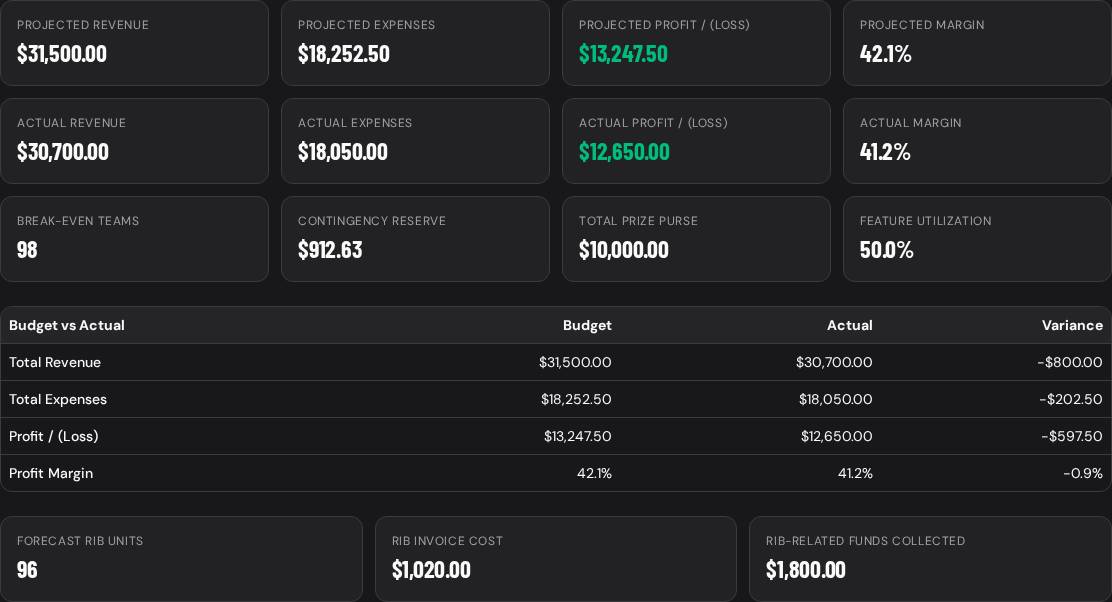
- Every event has its own P&L named after the event (e.g. "Jump-Off BBQ Championship P&L"). Open it from your Dashboard with the [Event name] P&L button.
- Don't want it? Flip the On/Off switch on the P&L page, or set the default under My Account → Settings → Organizer defaults.
- It auto-fills registered teams, entry fees collected, rib orders, prize purse and your EasyCookoff fees — type over any number. Changes save automatically.
- Sponsorship tab: add each sponsor's name and donation amount. Mark Paid when the money arrives, and use the Include in P&L switch to leave a sponsor out of the totals without deleting it. Included sponsors flow into Revenue (pledged = Budget, paid = Actual).
- Tabs mirror the workbook: Dashboard, Event Setup, Sponsorship, Revenue, Expenses, Prize Purse, Rib & Entry Tracking, Team Capacity and Feature Usage.
- The Dashboard shows projected vs actual revenue, expenses, profit, margin, break-even team count, contingency reserve and rib totals.
- Click Print / PDF anytime for a clean report, or Excel to download the full workbook with your numbers and formulas.
- Sponsor Thank-You Report: on the Sponsorship tab click Sponsor Thank-You Report. Edit the thank-you message, choose whether to show donation amounts, then Print / PDF — you get a sponsor summary page plus one letter per sponsor to send.
15. People's Choice Tracker, rib cards & sponsor wall
- PC Tracker (Dashboard → PC Tracker): turn on 'Print Ribfest/PC tallies & payouts', set the payback per rib ticket and for two side dishes (name them, e.g. Mac & Cheese, Beans), and the ticket prices.
- Enter each team's redeemed rib tickets, side 1 and side 2 tickets and People's Choice Ticket Counts. The # column matches the team numbers on your printed People's Choice ballots. Payouts and the People's Choice leader calculate automatically, and the ticket income and team payback flow into your event P&L.
- Print tallies + team sheets for a summary page plus one payout sheet per team. Switch on 'Upload to team portal' (or click Send to team accounts) so each team sees its own tally under My Registrations and gets a notification. Switch it off anytime to hide it.
- Rib Cards (Dashboard → Rib Cards): print branded, numbered People's Choice rib cards and golden tickets with your event name. Choose quantity, ribs per card and price. Every card carries a QR code to your event page so tasters can follow teams and come back next year.
- Event Flyer (Dashboard → Flyer, or Print / Share Flyer on your event page): a letter-size flyer with your date, location, payouts, cause and two QR codes — one for team sign-up and one for the event page. Print it, save as PDF, or Download as image for social posts. Add your cause under Edit → Cause / beneficiary, and flip 'Let fans print & share the Event Flyer' to let anyone viewing your event page use it too.
- Sponsor wall: on the P&L Sponsorship tab, upload each sponsor's logo, add a website, and use 'Show on event page' to thank them on your public event page.
Event Flyer Maker & stacked pricingNew
- Event Flyer Maker (Dashboard → Flyer): print a letter-size flyer, save it as a PDF, or Download as image for social. It includes your payouts, cause and QR codes for team sign-up and your event page.
- Edit Event → 'Let fans print & share the Event Flyer': turn it on and anyone viewing your event page can print or share the flyer.
- Rib cards now carry a QR code to your event page, so tasters can follow teams and come back next year.
- Stacked Competition Entry Fees: entries 1–12 are $2.00 each, 13–24 are $1.50 each, and every entry from #25 on is $1.00. Your billing card shows the breakdown, e.g. 12 × $2.00 + 12 × $1.50 + 6 × $1.00.
12. Grow your audience: followers & invites
- Fans and teams can tap Follow organizer on any of your event pages — organizer follows are instant (no approval).
- When your new event is activated and published, every follower gets an in-app alert, a push notification and (if they opted in) an email.
- Teams' approved followers are told when they sign up for or like your event — free word-of-mouth marketing.
- Fill your cookoff: open an event on your Dashboard — the 'invite more teams' prompt shows spots filled and how many more entries until each extra entry costs less. Click Share Invite Link to send your event page through Messenger, Instagram DM, Facebook, WhatsApp, text or email.
- Estimate your cost anytime with the live fee estimator on the Pricing page.
- Share your personal invite link from My Account → Friends (Messenger, Instagram DM, Facebook, WhatsApp, text or email). Anyone who joins with it follows you automatically.
- Teams can also share your event with their followers — likes and sign-ups appear in their friends' Activity.
- Hearts (likes) and saves on your event show how much interest it's getting before registrations open.
13. Automatic reminders & post-event feedback
- 1–2 days before your event, registered teams get a reminder and people who liked it get a 'coming up soon' alert — no work for you.
- 1–3 days after your event, registered teams are asked to rate it (1–5 stars) and leave a note.
- Each new rating arrives as a notification on your bell (My Account → Activity).
14. Notifications, push & organizer defaults
- Tap the bell in the header to see your Activity feed (follows, feedback, likes and more).
- My Account → Manage notifications: switch each Social, Activity and Email alert on or off, and Enable push notifications for alerts even when the app is closed (iPhone: Add to Home Screen first).
- My Account → Settings → Organizer defaults: pre-set People's Choice, rib sales, cash payments and the Event P&L tool for every new event you create.
- Settings also controls dark mode, sharing, Teams Directory visibility, event invites and judge availability.